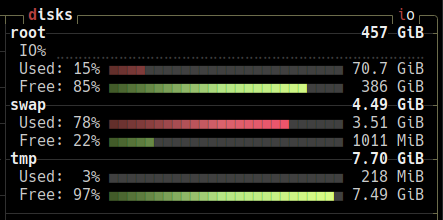
i have only one internal ssd and no external drives are connected
tmpfs? If so this is in RAM. You can check with
mount -lit lists multiple tmpfs:
tmpfs on /run type tmpfs (rw,nosuid,nodev,noexec,relatime,size=1616504k,mode=755,inode64)
tmpfs on /dev/shm type tmpfs (rw,nosuid,nodev,inode64)
tmpfs on /run/lock type tmpfs (rw,nosuid,nodev,noexec,relatime,size=5120k,inode64)
tmpfs on /run/credentials/systemd-journald.service type tmpfs (ro,nosuid,nodev,noexec,relatime,nosymfollow,size=1024k,nr_inodes=1024,mode=700,inode64,noswap)
tmpfs on /run/credentials/systemd-resolved.service type tmpfs (ro,nosuid,nodev,noexec,relatime,nosymfollow,size=1024k,nr_inodes=1024,mode=700,inode64,noswap)
**tmpfs on /tmp type tmpfs (rw,noatime,inode64)** (i am guessing it's this one)
tmpfs on /run/user/1000 type tmpfs (rw,nosuid,nodev,relatime,size=1616500k,nr_inodes=404125,mode=700,uid=1000,gid=1000,inode64)
tmpfs on /run/snapd/ns type tmpfs (rw,nosuid,nodev,noexec,relatime,size=1616504k,mode=755,inode64)
i hope these are all as konsole doesn’t seem to have a search function in kubuntu, why?
You are correct this is the one mounted on
/tmp.Everything under
/runand/devis normal to be on tmpfs and should not be changed.In Linux, a lot of internal systems and devices are considered as files even if they are not really a file in the usual sense of it. For example what is in
/devis usually not really taking up RAM space but more of a representation of the devices (internal and external) that are attached to your system. You can programatically read and write to these “files” to communicate with the devices.In Linux, everything is a file
for a more readable output
df -ht tmpfsthanks! but it’s unclear how to tell it lives in RAM…
Filesystem Size Used Avail Use% Mounted on tmpfs 1,6G 2,2M 1,6G 1% /run tmpfs 7,8G 1,5G 6,3G 19% /dev/shm tmpfs 5,0M 8,0K 5,0M 1% /run/lock tmpfs 1,0M 0 1,0M 0% /run/credentials/systemd-journald.service tmpfs 1,0M 0 1,0M 0% /run/credentials/systemd-resolved.service tmpfs 7,8G 236M 7,5G 3% /tmp tmpfs 1,6G 11M 1,6G 1% /run/user/1000tmpfs is a memory filesystem, they all do
https://man7.org/linux/man-pages/man5/tmpfs.5.html
one-liner to get the total used size
/usr/bin/df --type=tmpfs | awk 'NR>1 {sum+=$3} END {print "tmpfs used (MiB): " sum / 1024}'
Its a tmpfs file system that runs in ram
thanks for the reply! does that mean it occupies 7.7gib of the 9.57gib RAM currently being used? or just the 218mib?
it can use up to that number, but it won’t allocate that much when not needed, which is the case here. tmpfs can also use swap, so the maximum space available is system RAM + swap
As you can see, it is using 218 MiB at the moment, it is not pre-allocating the whole available space. the 7.70 GiB is the max limit of how much can be used. It is usually mounted in the
/tmpfolder. This is a standard practice, since this is destined for temporary files, it will allow fast access, reduce disk wear, and also wipe itself on reboot.so it’s kind of like the opposite of a swap file
If I wanted to use some analogies, I would imagine RAM is the space on your desk and disk is the drawers behind you.
Everytime the computer shutdown, the desk is totally cleared.
When you work, you have stuff on your desk space, files that you need temporarly are also on your desk because you want to keep them and clear them on shutdown, this is what
/tmpis for.Swap is when you desk is starting to be full, but you still need the data to work, so you have a special part in the drawer behind you that you move stuff that you don’t need right away but want to make some space on your desk. It is slightly slower to access since you need to move from your chair to get it.
It is not uncommon for Linux to eagerly move things in swap when you are not actively using them in RAM. This allows the system to be ready if you need more space. Linux is mart enough to handle moving all of this around (RAM, swap, tmp) as efficiently as possible so that it doesn’t impact your usage of the computer. Usually tuning these things is only necessary if you have some very specific issues with your system.
Also, since your disk is an SSD, you probably will not see a very big impact on performance. Swapping was really an issue in the past with spinning disks. SSD is not as fast as RAM, but magnitude faster and snappier than spinning disk.
thanks, that made it clearer!